Quite a common requirement for implementations of SharePoint that I am involved in is to create new managed paths for a given web application.
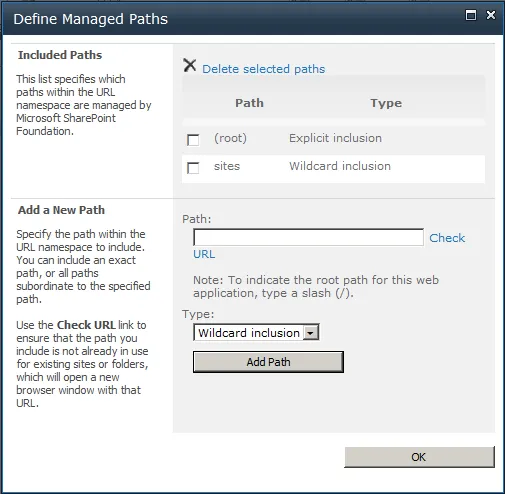
While it is a simple task to perform via Central Administration, I inevitably turn to PowerShell to achieve this so that I can then include it as part of larger configuration or deployment scripts.
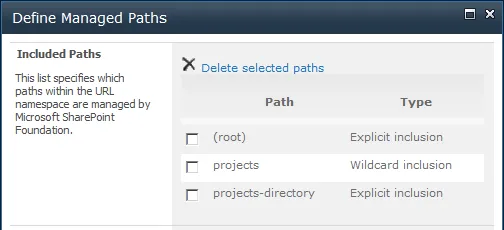
To manage managed paths in SharePoint we use the PowerShell Get-SPManagedPath, New-SPManagedPath and Remove-SPManagedPath cmdlets.
Reviewing existing managed paths
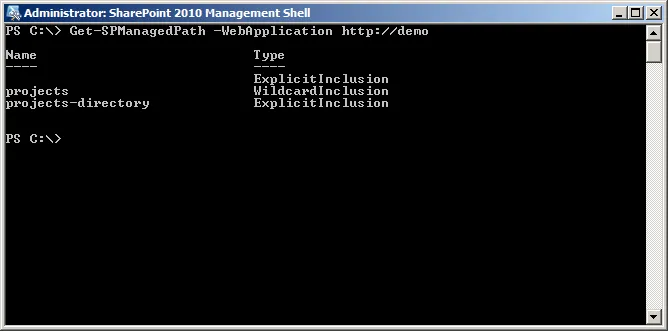
To get a list of all the managed paths for a given web application we use the Get-SPManagedPath cmdlet as shown below.
Creating a new explicit path
Explicit managed paths only allow one site collection to be created at a specific path. An example of this is the root site collection of a web application which has an explicit managed path of ”/” (https://sharepoint.jcallaghan.com).
To add a new explicit managed path to a web application we use the New-SPManagedPath cmdlet and include the -Explicit parameter.
Adding a wildcard managed path
Wildcard managed paths allow one or more site collections to exist at a specified path. This is the same as the default ‘sites’ managed path that we should all be familiar with (https://sharepoint.jcallaghan.com/sites/projectxyz).
To add a wildcard managed path we run the command as we did for an explicit managed path however we don’t include the -Explicit parameter.
Removing an existing managed path
There may be times when you need to remove managed paths. This can be done by running the Remove-SPManagedPath cmdlet and specifying the name of the managed path to be removed and what web application to remove it from. When removing a managed path you will be prompted to confirm the removal action - this can be silenced by adding -confirm:$false to the command.
Conclusion
Using the SPManagedPath nouns in PowerShell we can get a list of existing managed paths, create explicit or wildcard managed paths and also remove existing managed paths for a given web application.